
Open your console
Start the API and open /dashboard/ on the same server, for example http://localhost:3000/dashboard/. The dashboard ships with the API build. Docker users need no local Bun installation: follow Self hosted.
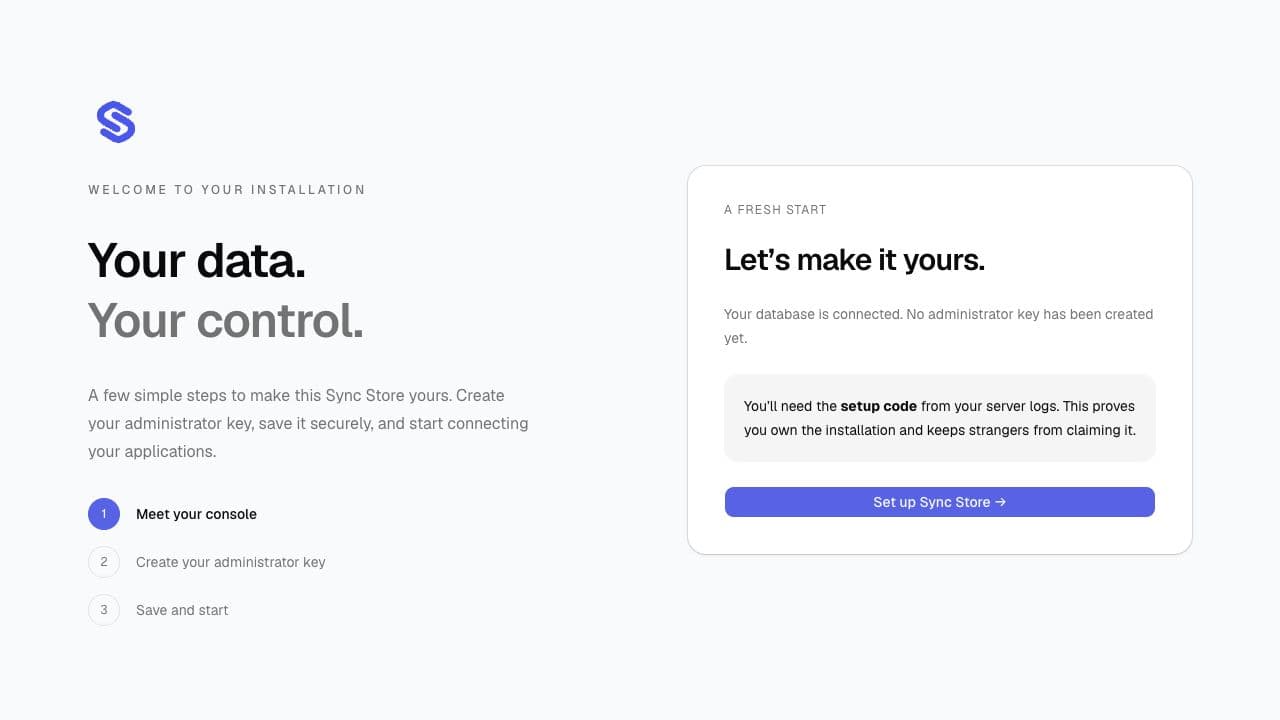
On a new installation, the dashboard opens a three-step onboarding flow:
- Select Set up Sync Store.
- Run
docker compose logs api, copy the Setup code, and enter it with a name for your administrator. Select Create administrator key. - Save the generated key in your password manager, confirm you saved it, and select Open my console.
The setup code proves access to the server. It remains valid across restarts until setup completes. Setup cannot be repeated after the administrator has been created, including when that key is disabled. Existing installations show the normal sign-in screen.
The administrator credential remains in this tab's memory only: refreshing or closing the page signs you out. It is never placed in the URL or browser storage. If the connection drops after key creation, use the recovery command below; do not reset your database.
Create an application key
Open API keys → Create key, give it a recognizable name, choose read/write permissions and save. Copy the secret before closing the panel. Existing secrets are omitted from list and detail responses. Use a separate key for each trusted application; never give your installation administrator key to an application or playground user.
Advanced settings accept JSON for expiration, request quotas, allowed HTTP methods, IP/origin/user-agent restrictions and HTTPS requirements. Unsupported settings are rejected. Disabling a key blocks subsequent authorization checks. Rotation replaces its secret immediately; update your application's configuration and disconnect old sessions when revoking access.
Explore and control your installation
| View | What you can do |
|---|---|
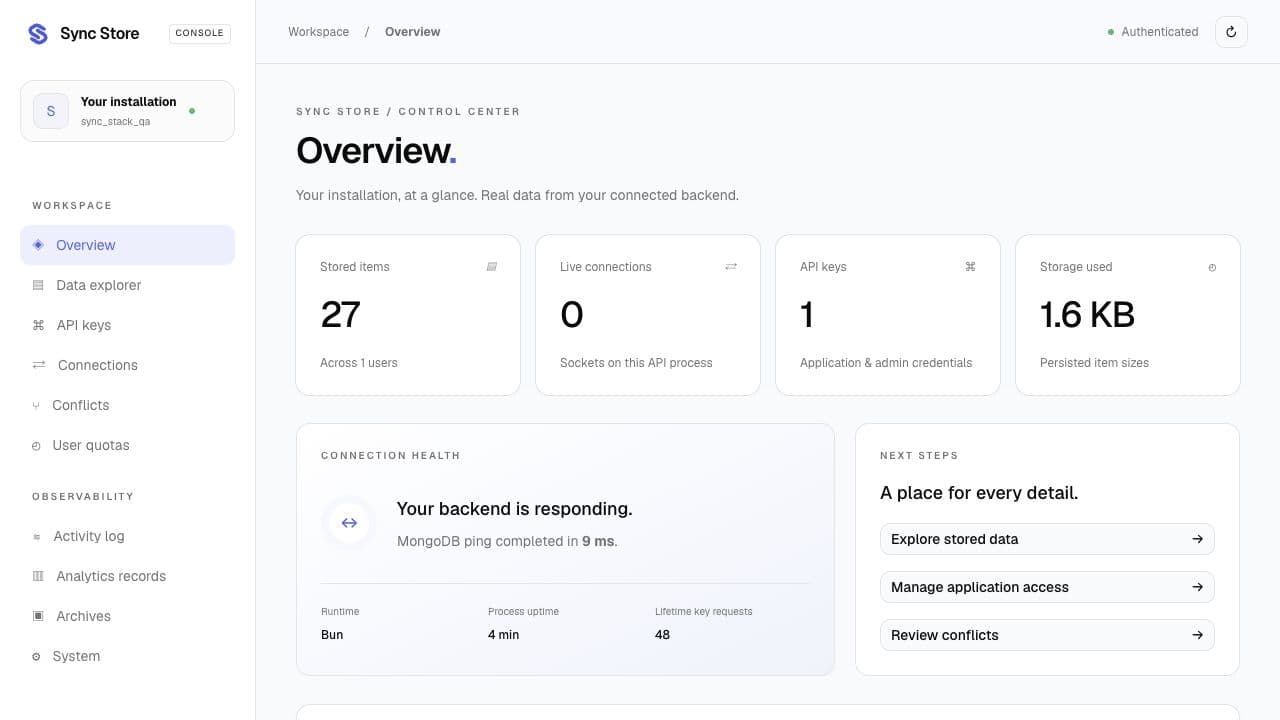
| Overview | Inspect live database counts, stored bytes, active sockets, uptime and database response time. |
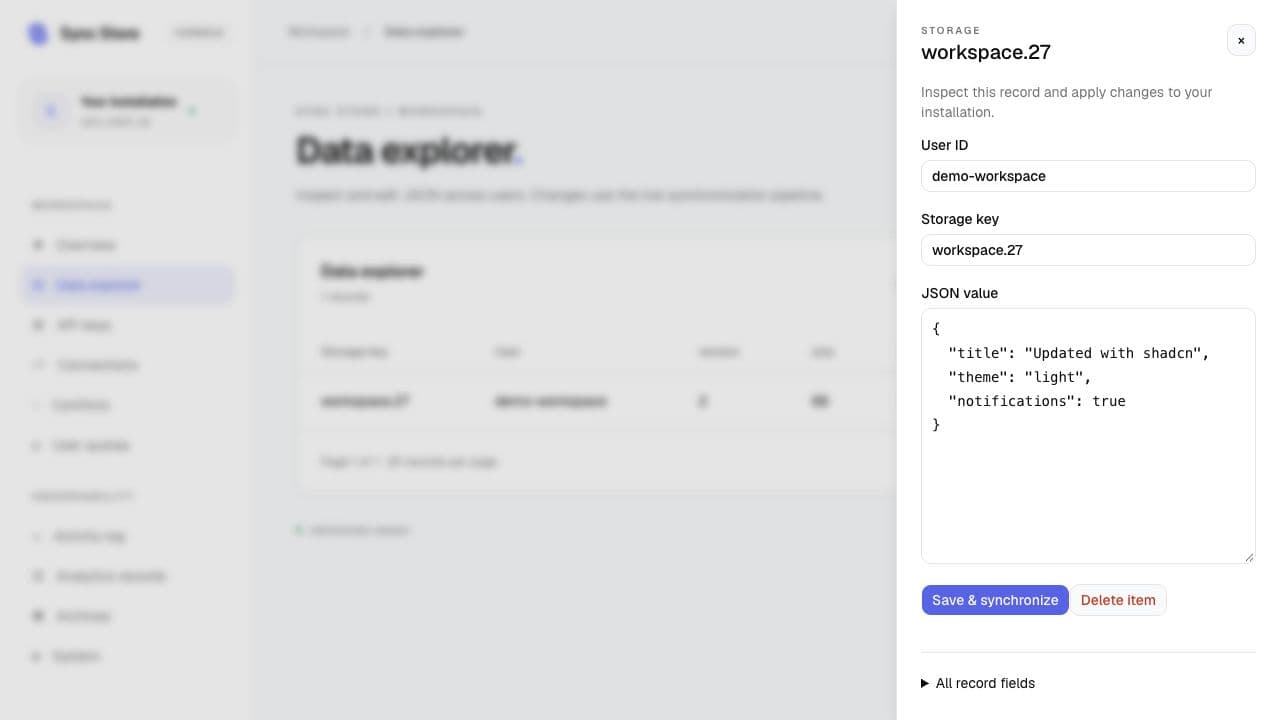
| Data explorer | Search stored records, inspect JSON, create or edit a user's value, or delete an item. Writes use the same event path as the SDK, notifying connected clients. |
| API keys | Create, inspect, edit, disable and rotate application credentials. |
| Connections | Inspect live Socket.IO connections across replicas and disconnect a session. Clients may reconnect unless their key is also disabled. |
| Conflicts | Inspect both values and record a deterministic resolution proposal. Review the result, then explicitly apply it in Data explorer. A proposal does not overwrite stored data. |
| Quotas | Inspect and edit existing user quota records. These are stored configuration; not every storage limit is currently enforced. |
| Audit log | Inspect recorded administrative changes without exposing credential secrets or stored values. |
| Analytics | Browse persisted analytics records. No synthetic historical charts are generated. |
| Archives | Inspect existing archived records; this view does not restore or remove them. |
| System | Check the connected API origin, runtime, database and operational limits. |
Lists are paginated, 25 records per page. Search matches selected identifying fields rather than every nested JSON value. Refresh loads current server state; counts and connections are snapshots, not a continuous monitoring stream. The inspector exposes the full returned record. Destructive actions require confirmation.
Each view has its own address, such as /dashboard/storage or /dashboard/keys. Search and page selection are retained in the URL, so browser Back and Forward restore your view. Opening a saved link after refreshing still requires signing in; credentials never appear in these URLs.
Recover administrator access
From the server's repository directory:
docker compose exec api bun run admin:keyFor a source installation, use bun run --cwd apps/api admin:key with the same database settings. This local operator command reads the existing credential; it does not reset the database or create another key. Protect terminal output and logs. Rotate the administrator key in the console if it has been exposed. The current tab adopts the new secret after rotation; other sessions must sign in again.
Development
The console uses Tailwind CSS 4, shadcn components, TanStack Router, TanStack Query and TanStack Table 9. Router owns view/search URLs; Query owns server reads, cancellation and mutation invalidation; Table renders server-paginated records. Signing out cancels reads and clears the in-memory query cache. Mutations are not retried automatically.
Components are maintained in apps/dashboard/src/components/ui, with shadcn configuration in components.json. Run bun run --cwd apps/dashboard test for URL validation and query-cache isolation checks, and bun run --cwd apps/dashboard test:types for type checking.
The API build includes the dashboard automatically. For UI development, run bun run --cwd apps/dashboard dev and open http://localhost:4100/dashboard/. Vite proxies /api to http://localhost:3000; set API_PROXY_TARGET to use another local API. Browser requests use the console's own origin, so credentials are not sent to a user-entered server URL.
Deployment boundaries
The console grants installation-wide access. Keep it behind HTTPS and a trusted network or authenticated reverse proxy. It is an operator console, not an end-user account system. Application keys do not authenticate user IDs. With the shared Redis adapter, session listing and disconnection work across API replicas. See security and deployment limits.